How to play Quests & Scavenger Hunts
Download loquiz app


Quick guide to get started
Activate: GPS (location services), WiFi, and Mobile data on your mobile device
Open the LOQUIZ application by tapping on loquiz icon
You need to allow loquiz to access the device’s camera, album and location services (a popup will appear when needed).
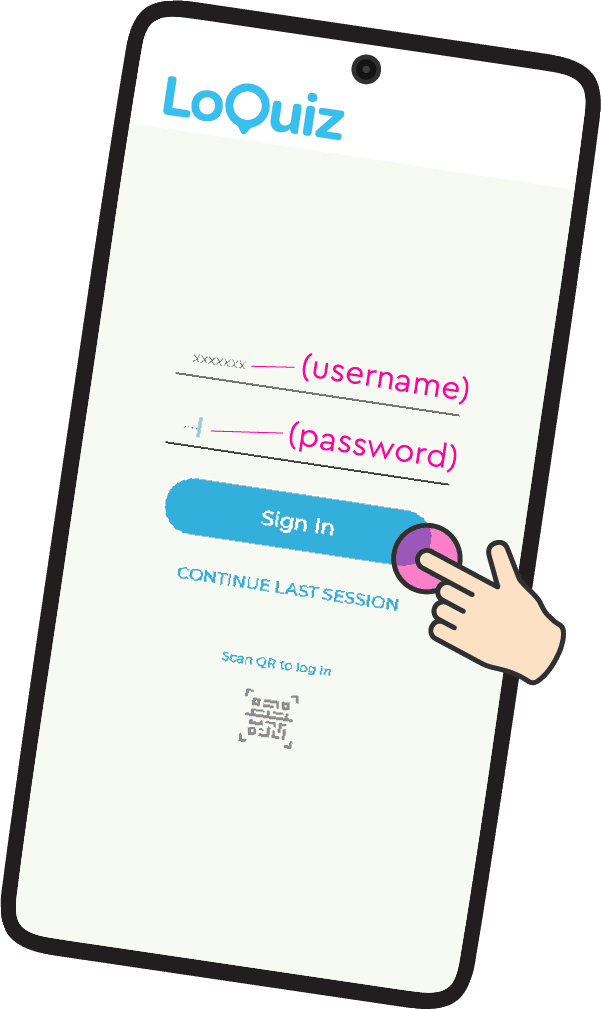
Fill in the username and password of the game and click “Sign in”
Read the game info and press “OK” (you can always read this info later, through app's Menu > Info tab)
You can now start playing: visit points, interact with the app interface and complete tasks
Be safe and have fun:
Check for traffic around and watch your steps!
Some quest locations, including rural areas and ancient ruins, may have uneven or unstable terrain.
Game menu
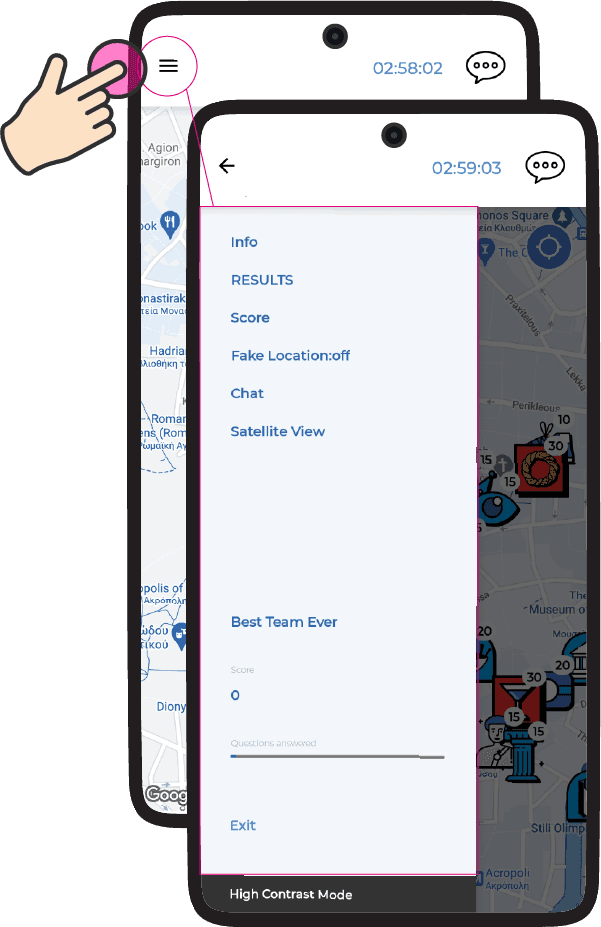
- Info: read again the game’s information if needed.
- Score: points you have visited, correct and wrong answers, distance traveled, total score.
- Chat: chat with the Game master or other teams (if enabled)
- Satellite/ map view: switch from native map to satellite map.
- Exit: closes the application.
FAQ
How to avoid roaming charges?
For EU citizen: roaming is free and you can use your program's mobile data to play the game.
For non-EU citizen: please start the game while on WiFi connection and connect to WiFi again once you’ve finished the game to upload your score and get a rank on the global scoreboard.
Which device to use?
If you have access to multiple phones, we recommend playing the game using the phone that has the longest battery life. LOQUIZ app drains your battery fast so it’s a good idea to play games with a fully charged phone.
How much battery does the app need?
Try to have your phone as charged as possible before starting. Anything above 50% should be fine. A good tip is to have a power bank with you!
My device ran out of battery, can I use another device to continue a game?
Yes, you can! Close the app (if not already turned off) from the device you wish to retire, download LOQUIZ app on the new device and start it (make sure to turn on Location, WiFi and Mobile data).
Put the game’s username and password on the new device and select “Continue with an existing team”. Choose your team and press “Ok”. The game will resume with the remaining time and pins on the map.
I am in the game, what now?
Each point on the map has a short intro and a circle. The circle on each point is the trigger radius: move inside this circle (the blue dot on the map representing your location should be inside the trigger radius) to activate the task hidden. After completing the task, the point you have visited will disappear from the map.
Your map is dynamic and you can zoom in / out, center it to your location, rotate it, and align it to the direction you wish to go.
What happens if I close the app while I’m in the middle of a game?
Nothing happens, resume your game when you want to: the game only ends if you visit all the pins on the map or game time ends. To continue, start the LOQUIZ app again and press “Continue last game”.
My screen froze, nothing happens!
Close the app, start it again and press “Continue last game” on the sign in screen.
My location dot (the blue dot on the map) is not moving properly or/ and has a pale blue circle around it!
Your device has lost some satellite connections and cannot determine your exact location. Move to an open area away from tall buildings and try restarting your device’s GPS/location services.
In some areas, satellite reception may be weaker, but the LOQUIZ app also uses Wi-Fi and mobile networks to help determine your position, so location accuracy is usually maintained.
My iPad does not activate any locations what to do?
To open tasks (activate locations) your iPad needs to be aware of your current location. This works through GPS system. GPS only works outdoors, please make sure you are outdoors with clear view to the sky.
Please check the following things:
1. Make sure that you are not using Wi-Fi only iPads. These iPads do not have GPS built in and therefore can not be used for location-based games.
2. Please ensure that your iPad is running iOS version 13 or higher. Loquiz does not support versions below that.
3. Check Loquiz app rights. Go to “Settings” in your device, scroll down to Loquiz app and check if Loquiz has “always” access to Location. Loquiz should also have access to Photos folder, Microphone, Camera and Mobile data.